Installing a Plugin
These steps are the same for every eelDev AWS plugin. The screenshots use GameLift Client.
Install to the engine
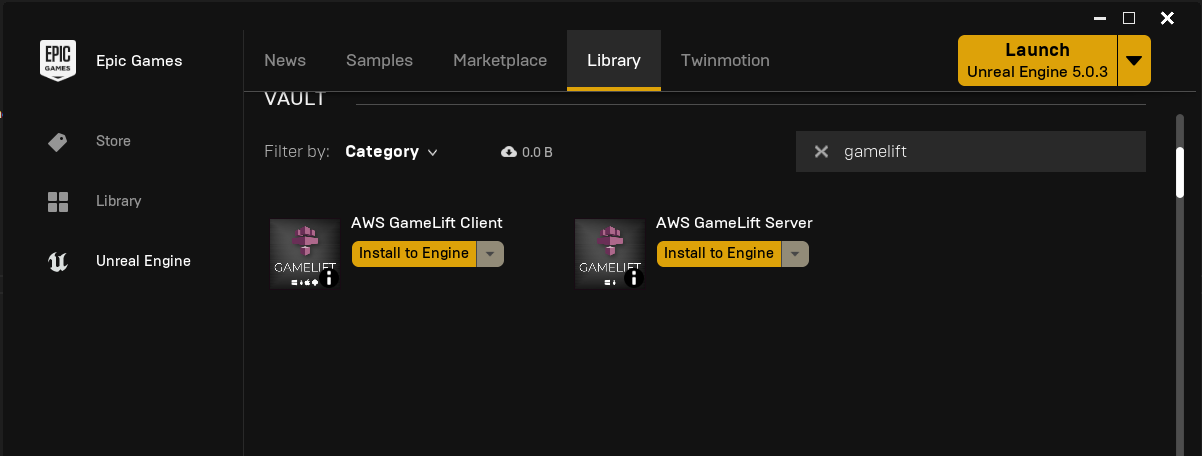
Install the plugin to your engine from the Epic Games Launcher.
Move the plugin to your project
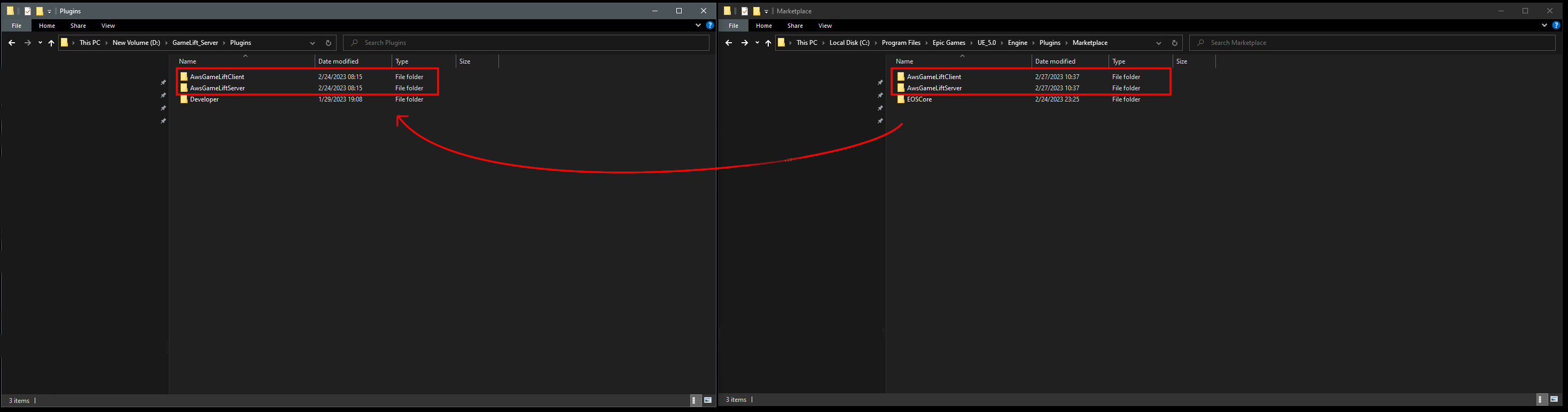
The launcher installs the plugin in the engine's Marketplace folder, for example:
C:\Program Files\Epic Games\UE_5.x\Engine\Plugins\Marketplace
Move the plugin folder to the Plugins folder of your project. Create the Plugins folder if your project doesn't have one.
Move the plugin, do not copy it. If the plugin is in both the engine and the project, the engine may load the wrong one.
Clean the plugin
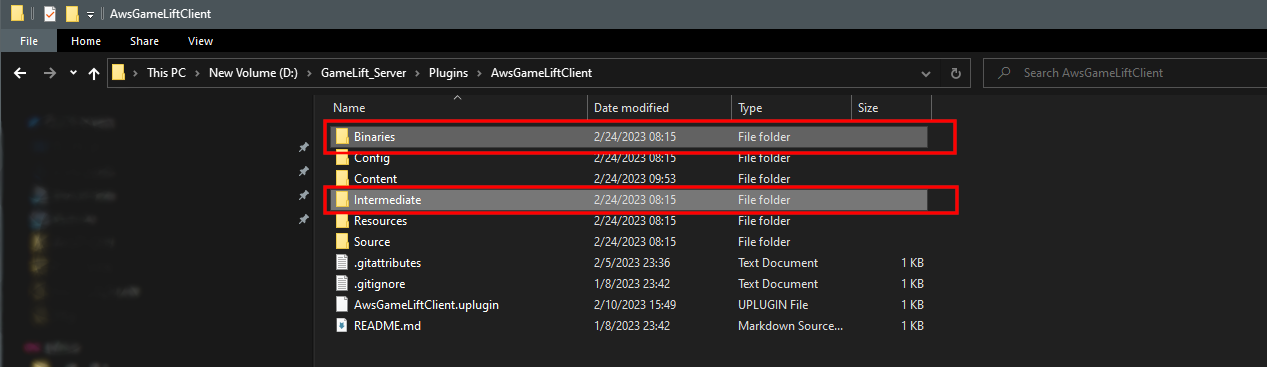
Delete the Binaries and Intermediate folders inside the plugin folder, so the plugin is built together with your project.
Enable the plugin
Open your project, go to Edit > Plugins, search for the plugin, for example AwsCore::S3, and enable it. Restart the editor when asked.
Updating
The Epic Games Launcher does not always update plugins properly, so do a clean install:
- Remove the plugin from the engine in the launcher, under Installed Plugins for your engine version.
- Delete the plugin folder from the Plugins folder of your project.
- Install the new version and follow the steps above.
Platforms
All plugins except GameLift Server work on Windows, Linux, Mac, Android and iOS. GameLift Server works on Windows and Linux.
Next: Initializing the Plugin